
Dashboard
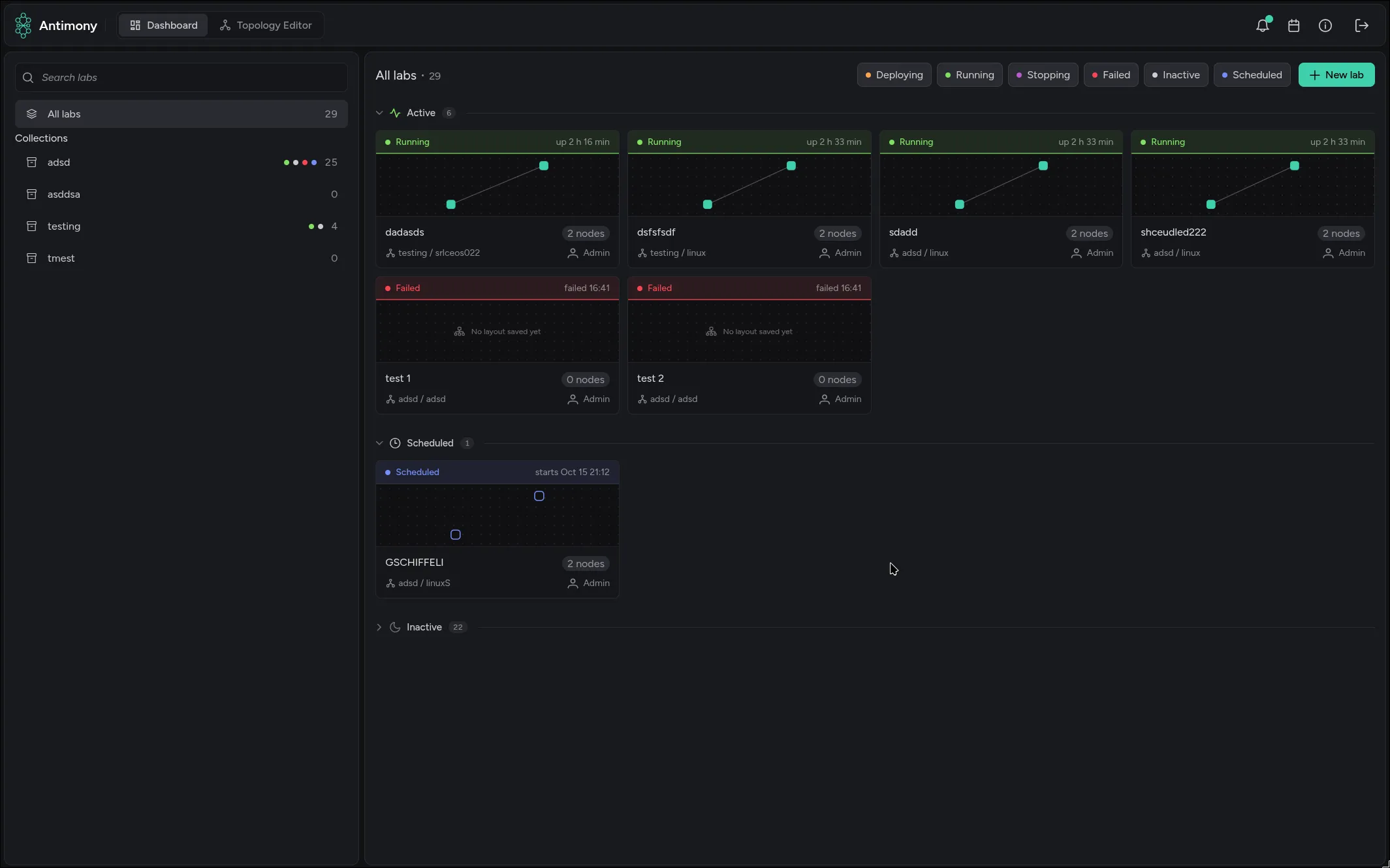
The dashboard is the first page you see after signing in. It lists every lab you have access to, grouped by state, with a live preview of each lab’s topology.
The top bar
Section titled “The top bar”The top bar is the same on every page.
| Element | What it does |
|---|---|
| Dashboard / Topology editor | Switch between the two main pages. They’re shown to administrators and to users with access to at least one collection. |
| Tour (question mark) | Only in the topology editor. Takes you through the editor; the tour also starts by itself the first time you open a topology. |
| Messages (bell) | Opens the messages panel with server messages such as finished or failed deployments. A dot shows unread messages. |
| Lab schedule (calendar) | Opens the lab calendar. Only shown to administrators. |
| Credits (info) | Shows the version, the authors and which deployment provider the server uses. |
| Log out | Signs you out. Not shown in Antimony Desktop, which signs you in by itself. |
Messages
Section titled “Messages”The messages panel lists messages from the server, newest first. Filter them by severity with the Error, Warning, Success and Info chips. Hovering over a message marks it as read; Mark all as read marks all of them.
Confirmations of your own actions, such as “Lab has been created successfully.”, appear as short pop-ups in the bottom-right corner instead.
Collections
Section titled “Collections”The left panel lists All labs and every collection you can access, with the number of labs in each. Coloured dots show which states the labs in a collection are in. Click a collection to show only its labs.
Search labs above the list finds labs by their name, their topology’s name or their creator’s name. You don’t have to click the field first: typing anywhere on the dashboard starts a search.
The lab grid
Section titled “The lab grid”Labs are grouped into three sections, which you can collapse:
- Active: labs that are deploying, running, stopping or failed.
- Scheduled: labs whose start time is still ahead.
- Inactive: labs that have ended. Collapsed by default.
Use the state chips above the grid (Deploying, Running, Stopping, Failed, Inactive, Scheduled) to hide or show labs in a state.
Each card shows:
- the state, with how long the lab has been up or how much time it has left, how many nodes are ready (“3 of 5 ready”), when it starts or when it failed
- a small preview of the topology, using the node positions from the editor
- the lab name, the number of nodes, the collection and topology, and who created the lab
Click a card to open the lab view.
The creator of a lab and administrators can right-click its card for Deploy, Redeploy, Destroy, Edit and Delete, depending on the lab’s state. Edit renames or reschedules a lab that isn’t deployed. Delete removes a lab that isn’t deployed or has failed; inactive labs also have a delete button on their card. Deleting asks for confirmation, except for inactive labs.
New lab opens the deploy dialog. It’s shown if you may deploy from at least one collection, or from the selected one.
Connection problems
Section titled “Connection problems”If the interface loses its connection to the server, a banner reads “Antimony is experiencing network issues” and shows whether the Antimony API and the Antimony Socket are reachable. The interface keeps trying to reconnect. If the server can’t be reached at all when you open Antimony, you see “Unable to connect to the Antimony server.” instead.