
Deploying and scheduling labs
A lab is a running copy of a topology with a start and an end time. You can create as many labs from a topology as you like, for example one per student.
Creating a lab
Section titled “Creating a lab”Open the deploy dialog in one of these ways:
- New lab on the dashboard
- Deploy in the topology editor’s toolbar
- the ▶ button or Deploy menu entry next to a topology in the editor’s explorer
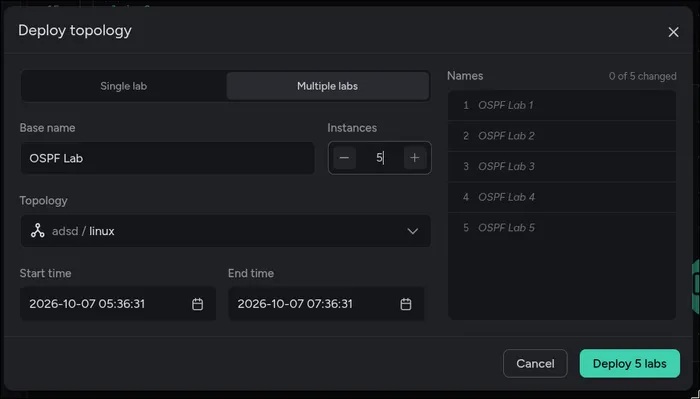
| Field | Description |
|---|---|
| Lab name | Must be unique within the collection. Up to 64 characters: letters, digits, spaces, ., _ and -, starting with a letter or digit. |
| Topology | The topology to deploy, grouped by collection. Only collections you may deploy from are listed. |
| Start time | When Antimony deploys the lab. Defaults to now. |
| End time | When Antimony destroys the lab again. Defaults to two hours from now, and must be after the start time. |
Click Deploy. If the start time is now or in the past, the lab is deployed right away. Otherwise it’s scheduled and appears under Scheduled on the dashboard.
You need permission to deploy from the topology’s collection: you’re an administrator, or you have access to the collection and it has Anyone can deploy turned on.
Creating labs for a whole class
Section titled “Creating labs for a whole class”Switch the dialog to Multiple labs to create between 2 and 50 labs from the same topology in one go, with the same start and end time.
- Enter a Base name, for example
OSPF Lab, and the number of Instances. - The Names list fills with
OSPF Lab 1,OSPF Lab 2, and so on. Rename any of them, for example to the students’ names. Paste a list of names, one per line, into a field to fill it and the fields below it. - Click Deploy N labs.
Every lab needs a different name.
Changing or rescheduling a lab
Section titled “Changing or rescheduling a lab”Labs that aren’t deployed (scheduled and inactive labs) can be renamed and moved to another time. Right-click the lab’s card on the dashboard and choose Edit, or, as an administrator, click the lab in the lab schedule. Edit lab has the lab’s name, start time and end time. Antimony then deploys and destroys the lab at the new times.
Only the creator of a lab and administrators can change it.
Starting, stopping and redeploying
Section titled “Starting, stopping and redeploying”The creator of a lab and administrators can control it from the lab view or the right-click menu of its card on the dashboard:
| Action | What happens |
|---|---|
| Deploy | Deploys a scheduled or inactive lab now. If the lab’s end time has already passed, Antimony removes it, so the lab runs until you destroy it. |
| Redeploy | Deploys a running lab again, from the same files. |
| Destroy | Removes the nodes of a running or deploying lab. The lab becomes inactive, or scheduled if its start time is still ahead. |
Destroying asks for confirmation.
The lab schedule
Section titled “The lab schedule”Lab schedule (the calendar in the top bar) is only available to administrators. It shows all labs with an end time as events. Switch between Month, Week and Agenda views, and use Today to jump back. Click a day to see that week.
Scheduled labs, marked with a pen icon, can be clicked to edit and reschedule them.
Topologies with unsafe features
Section titled “Topologies with unsafe features”If the topology policy is enabled, you can’t deploy a topology that has findings unless you are an administrator. Creating the lab fails with This topology uses features that only admins can deploy. Remove the reported features, or ask an administrator to deploy the lab for you.
The topology is only checked when the lab is created, so a lab an administrator created also deploys later, for example at its start time.
When a deployment fails
Section titled “When a deployment fails”The lab moves to Failed and its card turns red. Open the lab and click View logs to see what went wrong in the deployment log. Common causes:
- an image that can’t be pulled, because it doesn’t exist or needs registry credentials
- an invalid topology for the provider, for example features clabernetes doesn’t support
- a bind file path that doesn’t exist
A failed lab can’t be redeployed. Fix the problem, delete the failed lab from the right-click menu of its card and create a new lab. Since a lab keeps the topology it was created from, a fixed topology only takes effect in a new lab.